Connect MotherDuck to Excel
Use Excel's 'Get Data' flow with the DuckDB ODBC driver to load MotherDuck data into Excel. This setup works well for recurring reporting, analysis, ad hoc SQL exploration, finance models, and operational dashboards without having to rely on exported CSVs.
- Windows
- macOS
Before you start
To get started you'll need the following.
- Windows + Excel (ODBC is Windows-only for this flow)
- A MotherDuck access token (create one in the MotherDuck token page)
- Admin rights on your computer to install the ODBC driver
Installation steps
1. Install the DuckDB ODBC driver
- Download the latest DuckDB ODBC driver for Windows (amd64):
- Extract the
.zipfile and runodbc_install.exeas Administrator (right click -> Run as administrator).
2. Configure the DuckDB System DSN
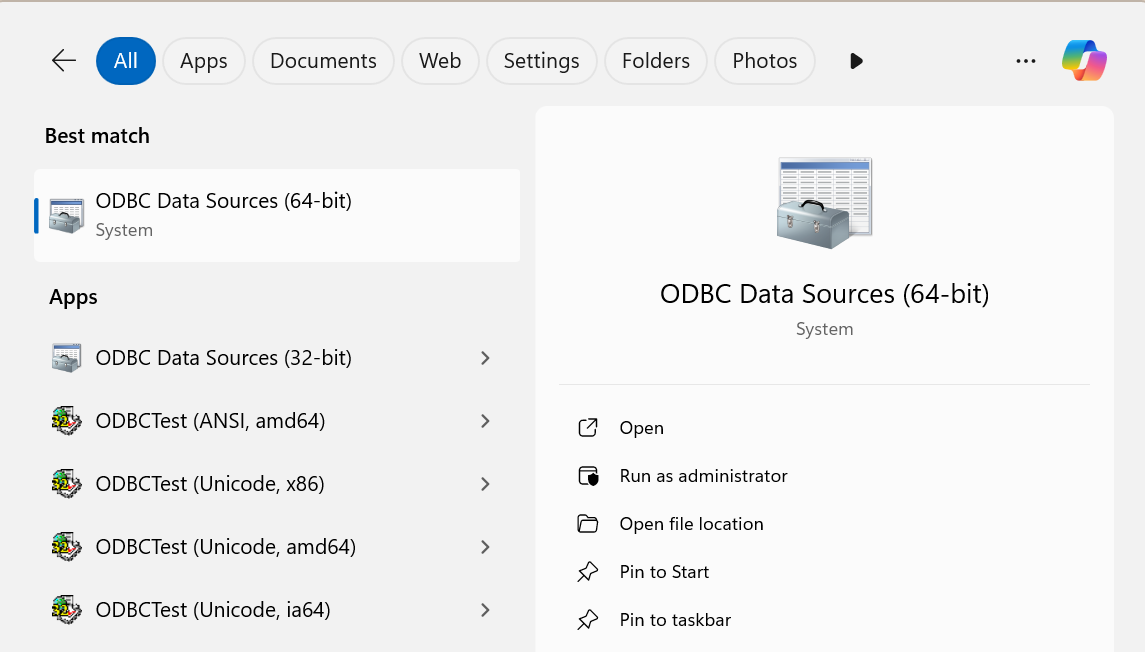
- Open the ODBC Data Source Administrator:
- 64-bit Excel: Start menu -> ODBC Data Sources (64-bit)
- 32-bit Excel: Start menu -> ODBC Data Sources (32-bit)
-
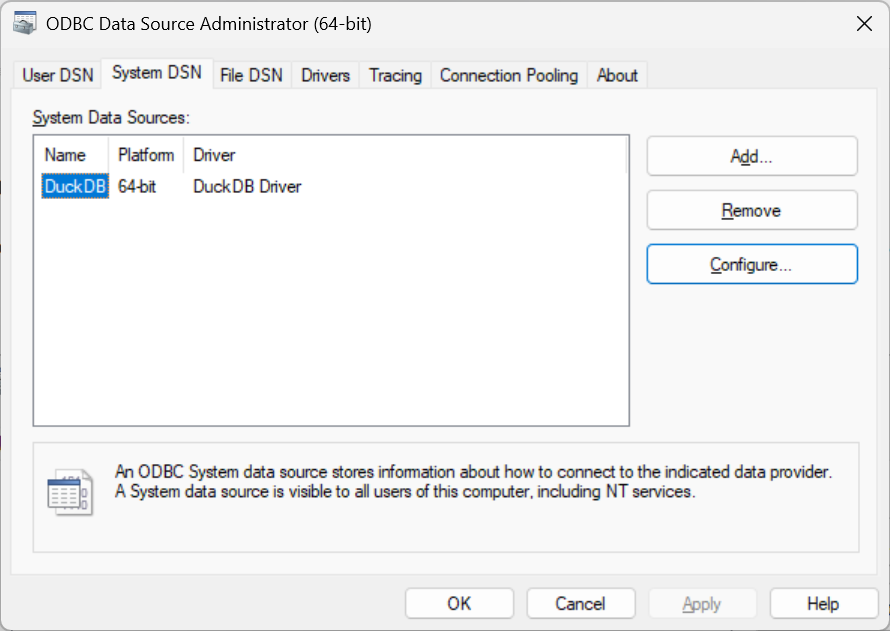
Go to System DSN, select DuckDB, and click Configure.
-
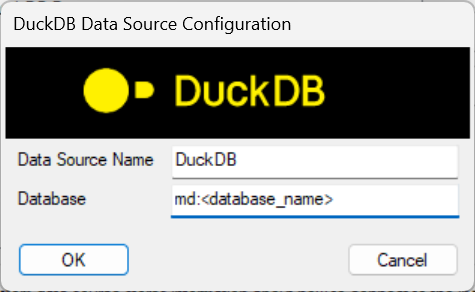
Set Database to one of the following:
- Recommended (scoped):
md:your_database_name - Open scope:
md:(allows access to any database)
- Recommended (scoped):
-
Click OK to save.
3. Connect from Excel (Get Data)
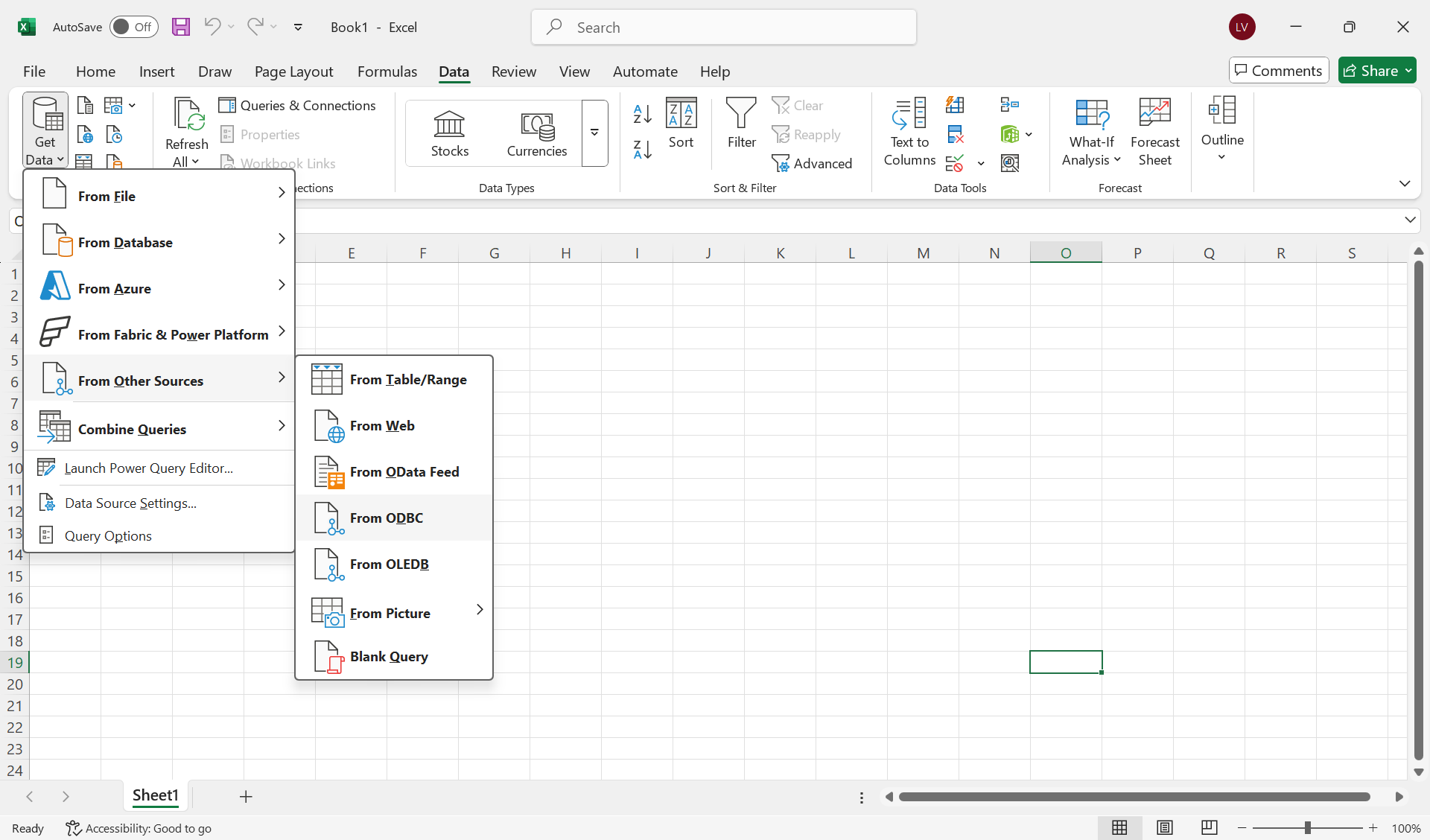
- In Excel, go to Data -> Get Data -> From Other Sources -> From ODBC.
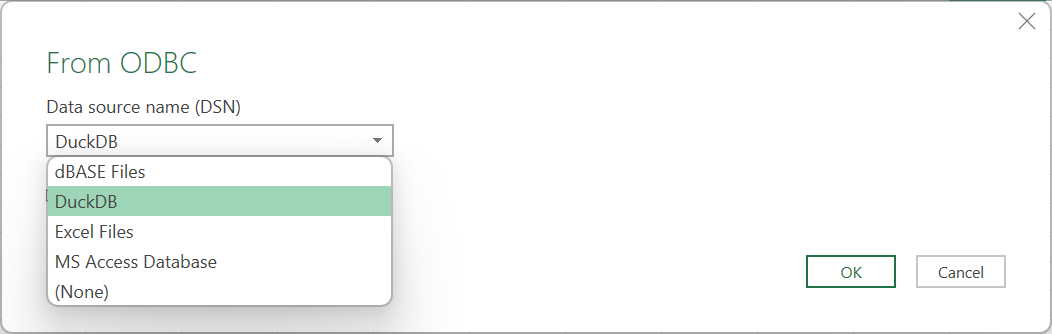
 2. Choose DuckDB from the DSN dropdown and click OK.
 3. On the credentials screen, choose Default or Custom and add this to the Connection string properties field:
motherduck_token=<YOUR_MOTHERDUCK_ACCESS_TOKEN>
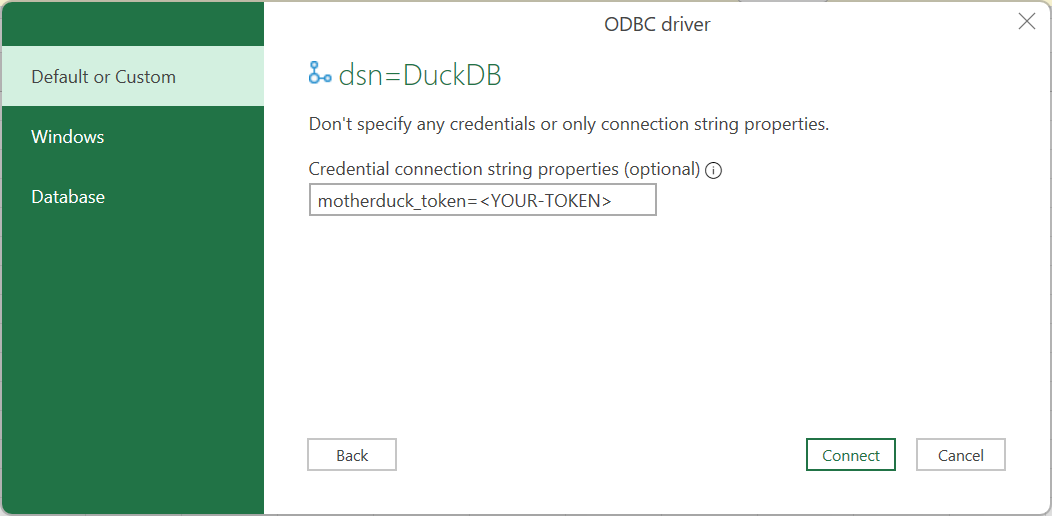
- Click Connect.
4. Load or transform data
Use the Navigator window to select tables and choose Load to bring data into Excel, or Transform Data to shape it in Power Query before loading.
Excel ODBC on macOS
Direct ODBC connectivity between Excel and MotherDuck is not currently supported on macOS due to a driver incompatibility.
Why it doesn't work
Excel on macOS uses the iODBC driver manager, but the DuckDB ODBC driver is built for unixODBC. These drivers are incompatible at the binary level. This is a known issue being tracked by the DuckDB team. If necessary, you can build this driver yourself.
Alternatives for macOS users
Option 1: Export directly to Excel with DuckDB (CLI and drivers)
DuckDB has an Excel extension that can write .xlsx files directly. This works with DuckDB CLI or any DuckDB driver, but cannot be used in the MotherDuck UI as we cannot currently export .xlsx files to your local file system.
-- Connect to MotherDuck and export to Excel
ATTACH 'md:';
COPY (SELECT * FROM my_database.my_table) TO 'output.xlsx' WITH (FORMAT xlsx, HEADER true);
Or via command line:
duckdb -c "ATTACH 'md:'; COPY (SELECT * FROM my_database.my_table) TO 'output.xlsx' WITH (FORMAT xlsx, HEADER true);"
Option 2: Use the MotherDuck Web UI
Query your data in the MotherDuck Web UI and export results:
- Run your query in the MotherDuck UI
- Click the download button to export as CSV
- Open the CSV in Excel
Option 3: Export to CSV via DuckDB CLI
Use the DuckDB CLI to export query results to CSV:
duckdb -c "ATTACH 'md:'; COPY (SELECT * FROM my_database.my_table) TO 'output.csv' (HEADER, DELIMITER ',');"
Tips
- If you change your MotherDuck token, update the connection string properties in Excel.
- If you use multiple databases, create separate DSNs (e.g.,
DuckDB - analytics,DuckDB - finance) with differentmd:databasevalues.
Troubleshooting
How do I delete an existing MotherDuck connection in Excel?
- In Excel, go to Data -> Queries & Connections.
- Find the connection you want to remove, right click it, and choose Delete.
How do I modify an existing MotherDuck connection?
- In Excel, go to Data -> Queries & Connections.
- Right click the connection and choose Properties.
- Open the Definition tab and update the connection string (for example, update
motherduck_token=...) and save.
If you don't see the Definition tab, use Data -> Get Data -> Data Source Settings, select your DuckDB connection, then choose Change Source or Edit Permissions as needed.